From an idea to a finished SVG
Turn a clear brief, an existing image or a sketch into a usable SVG, then check its shapes, transparency and export sizes before delivery.
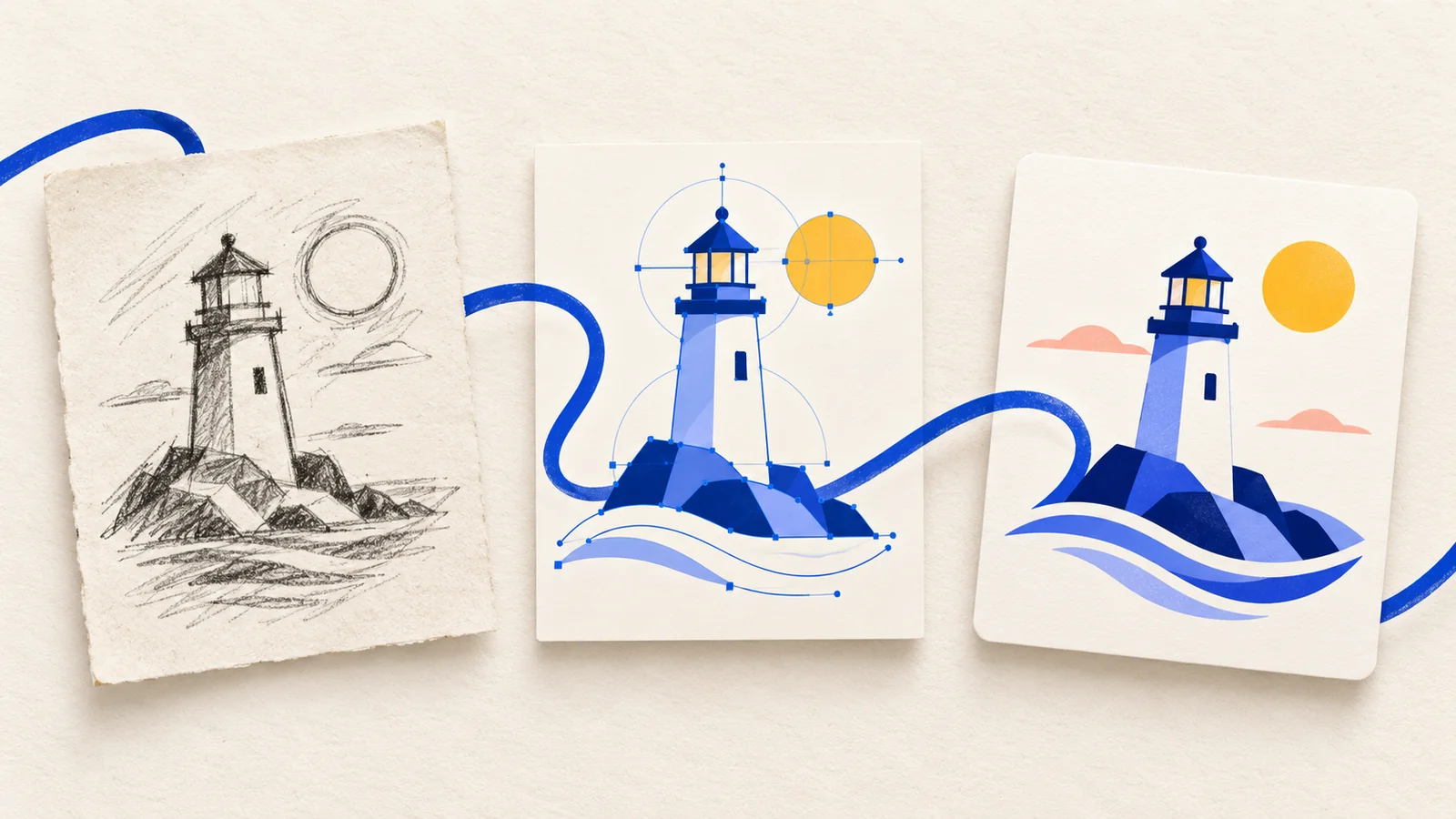
An SVG is finished when it works where you intend to use it. A convincing large preview can still become an unreadable toolbar icon, arrive with an unwanted background or contain a bitmap instead of editable shapes. This workflow gives you a clear starting brief, a suitable creation route and a repeatable delivery check.
Start with the destination
Write down the subject, purpose, dimensions and background before opening a tool. “A cactus icon” leaves many decisions open. “A cactus icon for a gardening app, readable at 24 and 48 pixels, green and cream, on a transparent canvas” gives you something to evaluate.
Separate requirements from preferences. The outline must remain visible at 24 pixels; the pot shape might be flexible. For a banner, composition and surrounding space may matter more than tiny detail. Keep this brief beside the preview so that each revision solves a specific problem.
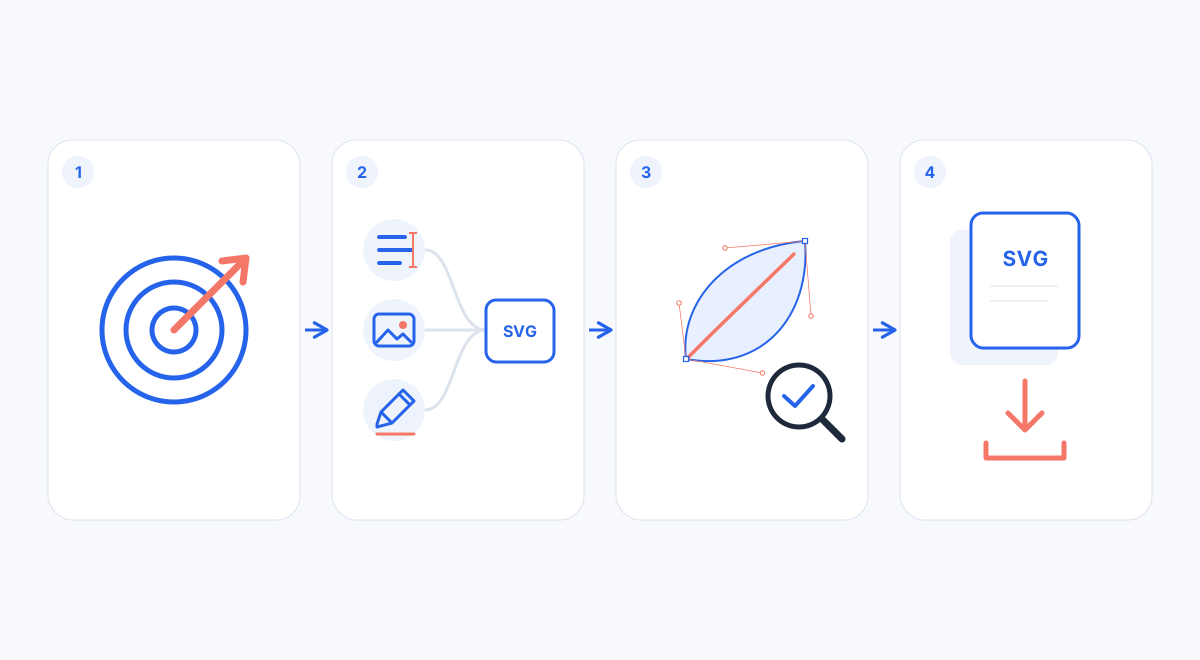
Choose a starting route, inspect the resulting SVG, then prepare files for their destination.
Choose a creation route
- Describe an idea: use AI SVG generation when you need a new icon or illustration from words. Text-to-SVG generation costs 1 credit and requires signing in with enough credits.
- Convert an existing image: use image-to-SVG for a PNG or JPG with useful shapes already present. The image-vectorization workflow costs 2 credits and also requires signing in. It interprets the image; it does not promise an exact reconstruction of every pixel.
- Draw the shapes yourself: use freehand SVG for a deliberate sketch or simple geometry. Drawing, SVG compression and raster export tools work locally in the browser. They do not require an AI generation just to process a file.
Use Studio for the generation workflow. Choose the route because it suits the source material, rather than repeatedly asking AI to reproduce a shape you could draw directly.
Make the first prompt specific
Begin with one subject and one visual job. State the palette, silhouette, line style and background, then remove distracting requirements. For example:
A single front-facing potted cactus for a gardening app icon. Three flat colors: dark green, mint and warm cream. Bold simple shapes, consistent outlines, generous negative space, centered composition, plain transparent background. No text, letters, watermark, gradients or tiny decorative details. Readable at 24 × 24 pixels.
The color names communicate a direction; they do not guarantee exact brand color values. If you need exact colors or typography, inspect and adjust the downloaded SVG in a suitable vector editor.
Keep the subject, palette, layout and target size fixed while testing one change. Repeat the full brief for each new attempt, changing one requirement: for example, ask for a thicker main outline. AI output can still vary, so compare results against the brief instead of expecting identical geometry. Save a promising file before trying another generation.
Prepare raster images before vectorization
In your image editor, crop away empty margins and unrelated objects. Start with a clear, adequately sized source rather than an enlarged, blurred thumbnail. Improve separation between the subject and background; reduce compression artifacts, tiny texture and soft shadows when they do not belong in the final illustration.
A flat symbol with distinct edges usually needs fewer interpretive decisions than a photograph with hair, reflections or smoke. Decide which features should survive simplification. If background removal is needed, prepare that source separately; optional external foreground extraction is not a default step included in every conversion. Review the resulting edges and colors before submitting another attempt.
Inspect the SVG at useful sizes
Check at 24 pixels, 48 pixels and the actual display size. At small sizes, look for merged gaps, vanishing strokes and details that become visual noise. At the intended display size, inspect curves, alignment and padding. A clean silhouette matters more than the number of paths.
Check the viewBox, which defines the internal coordinate rectangle. Artwork outside that rectangle can be clipped; excess space can make a correctly sized icon look too small. Also inspect the following:
- Text and fonts: a missing font can change layout. Use a dependable font setup or outline text in your vector editor when appropriate.
- Transparency: preview on both light and dark backgrounds. A white shape is different from an empty, transparent region.
- Embedded raster content: an SVG can contain an
<image>element that references or embeds a bitmap. An.svgextension alone does not prove that all artwork consists of scalable paths.
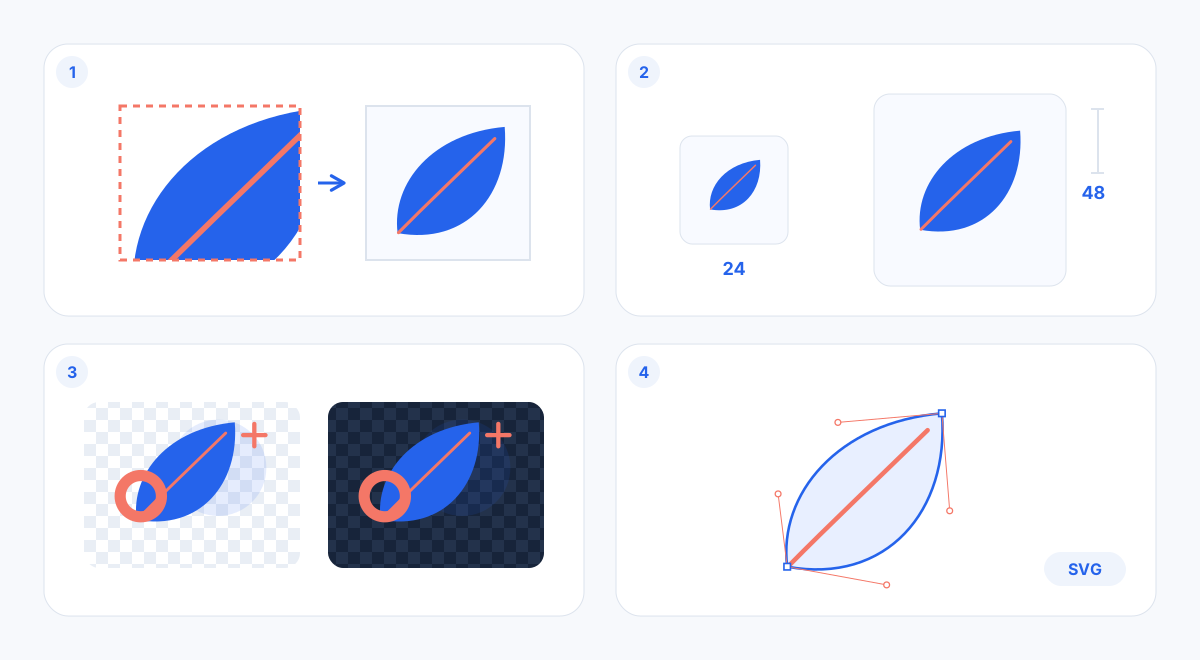
Check the graphic at its real sizes and on different backgrounds before exporting.
Keep a source file and export a delivery copy
Download the SVG before changing format. Keep separate local files with clear names, such as cactus-source.svg and cactus-web.svg; these are your own saved copies. Run a copy through the SVG compressor, then compare the result visually. Keep the source if optimization changes the appearance.
Use SVG-to-PNG when the receiving application needs pixels, or SVG-to-WebP for a web image. Prepare the required dimensions in the SVG before conversion: a 24-pixel icon shown at twice the pixel density needs a 48-pixel raster export. Recheck transparency and edges in the exported file. Our format guide explains the tradeoffs.
Fix the cause, then hand off
If the icon is muddy, simplify the silhouette before adding detail. If vectorization produces speckles, clean the input rather than repeating the same conversion. If edges are cut off, check bounds and padding. If text shifts, inspect fonts. If the export looks soft, check its pixel dimensions and the size at which it is displayed.
Before delivery, confirm the subject, colors and small-size readability; check bounds and transparency; open the downloaded file in its destination; and retain the original SVG alongside the required raster exports. That final check connects a good-looking preview to a usable asset.
Technical references: MDN SVG introduction, viewBox, and the image element.