SVG, PNG, JPG or WebP: choose the right delivery file
Choose an image format for website icons, transparent illustrations and social uploads, with practical checks for size, backgrounds and export quality.

Start with where the image will be used
A website icon, a transparent product illustration and a social post can begin with the same SVG, yet need different delivery files. Choose for the receiving application, the displayed size and the background. Keep an editable master before preparing exports; a smaller file is useful only if it still looks right.
For a website you control, SVG often suits simple icons. A marketplace may require PNG for a transparent illustration. A social platform may accept JPG but reject SVG. Check its upload requirements before exporting.
Choose the delivery format
| Format | Useful for | Check before delivery |
|---|---|---|
| SVG | Editable logos, interface icons and vector illustrations | The destination accepts SVG; embedded images and fonts remain usable |
| PNG | Sharp raster graphics with transparent backgrounds | Pixel dimensions suit the display size; file size fits the upload limit |
| JPG | Opaque image uploads and photographic compositions | No transparency is needed; compression preserves important edges |
| WebP | Web delivery where the receiving system accepts WebP | Transparency, visual quality and compatibility survive the complete workflow |
PNG uses lossless compression. JPG uses lossy compression and has no alpha channel. WebP supports transparency and both lossy and lossless encoding, but the format name alone does not tell you how a particular exporter encoded it. Compare actual downloads at their intended size.
Vector size and pixel size are different
An SVG drawing built from paths can scale without enlarging a fixed pixel grid. A PNG contains a particular number of pixels. For an illustration displayed at 240 × 160 CSS pixels, a 1× raster is 240 × 160 pixels; a 2× raster is 480 × 320, displayed at the same CSS size. Doubling its dimensions gives four times as many pixels, usually increasing file size.
Prepare those dimensions in the SVG before conversion rather than assuming a download is automatically 2×. These converters use the SVG dimensions and limit the longest edge to 4096 pixels. Keep the viewBox consistent so the composition stays proportional.
An .svg extension does not guarantee that everything inside is vector. An SVG can include a raster picture through an image element. Enlarging that wrapper does not restore detail missing from the embedded picture.
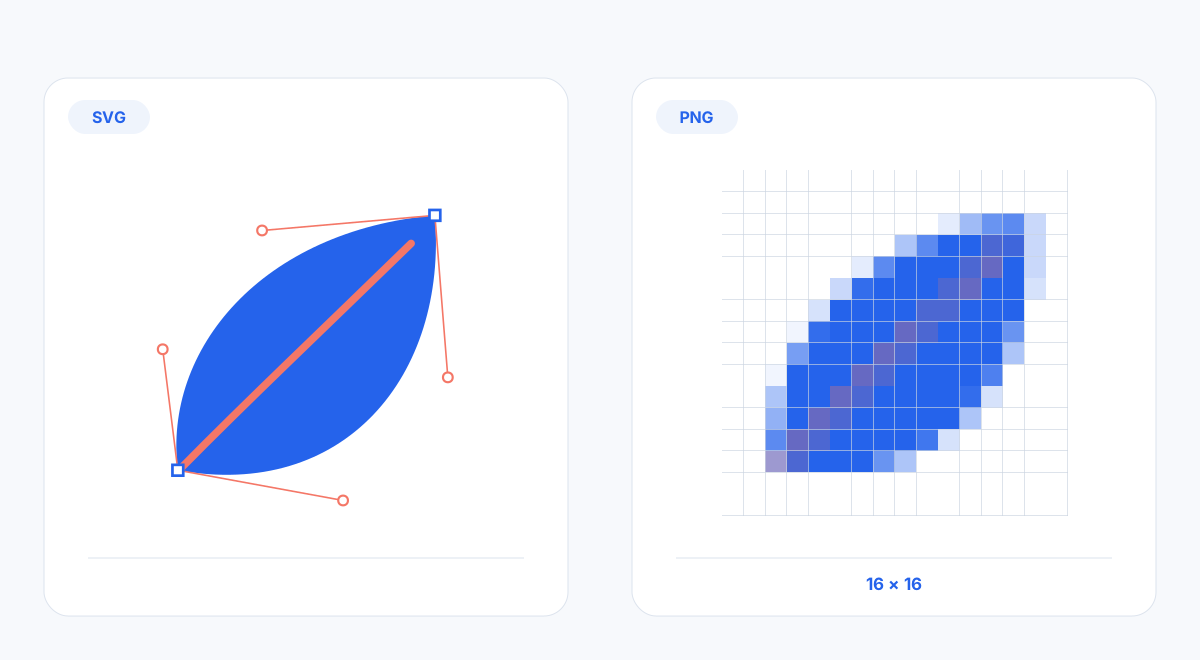
Vectors describe geometry; raster exports need enough pixels for their final display size.
Export without losing transparency
Open the downloaded file over both light and dark backgrounds. A white preview does not prove that an image is opaque, and a checkerboard can itself be baked into the artwork. Check that the background changes through the empty area and that fine edges look clean.
Use SVG to PNG when transparent, sharp-edged artwork is the priority. Try SVG to WebP when the destination accepts it, then verify the result there. JPG cannot retain transparency: this site's SVG to JPG converter composites transparent regions onto white.
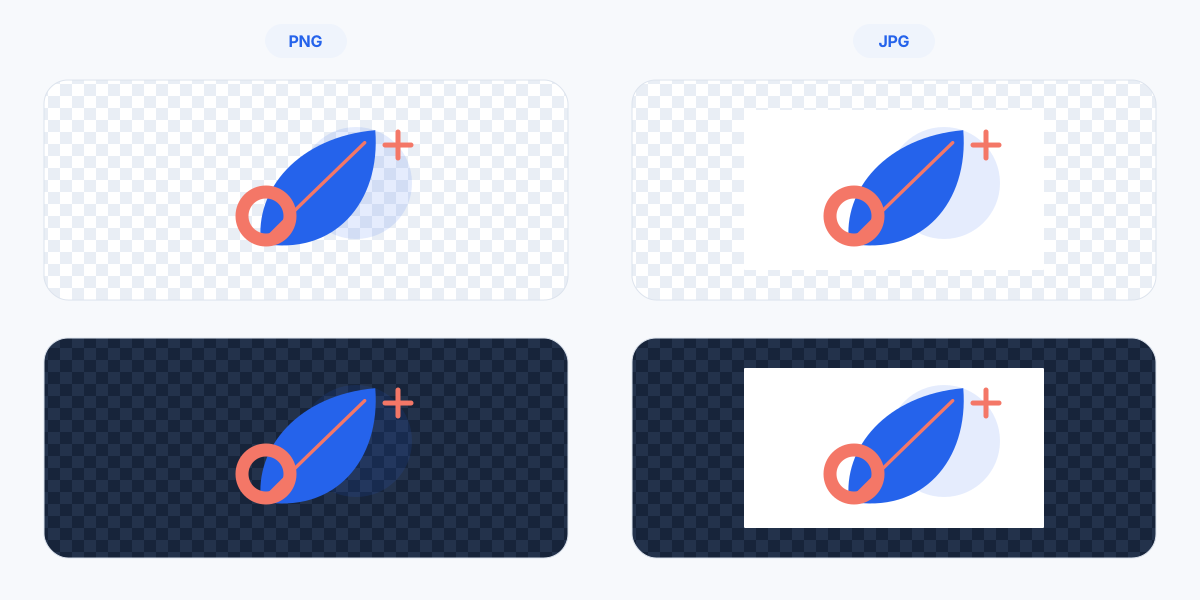
Inspect empty areas and edge pixels against contrasting backgrounds before handing over a transparent image.
Three practical handoffs
Website icon: start with SVG if your site accepts it. Inspect the icon at its actual 24-pixel display size; a scalable file can still have crowded details or strokes that look uneven at small sizes. Prepare a PNG fallback if the receiving system requires one.
Transparent product illustration: export PNG at the required pixel dimensions. Place it on the actual product page background, including dark mode if applicable. Check shadows, pale highlights and semitransparent edges rather than judging only the center of the illustration.
Social upload: use the platform's current size and format requirements. Prepare the intended background before uploading an opaque image. Inspect the published preview too: the service may crop or recompress a file that looked correct locally.
Other formats have specific jobs
Use SVG to GIF when a system specifically requires GIF. This tool creates a static image, not an animation. Its limited palette can change gradients and soft edges.
The BMP exporter creates a 24-bit image with transparency composited onto white. The TIFF exporter writes RGBA pixels; it does not provide a CMYK conversion or guarantee print-ready output. ICO is intended for icons, but this converter writes one selected size per file, not a bundle of multiple resolutions. Follow the receiving application's specification.
Common export questions
Why does the result look blurry?
Check pixel dimensions against display size and device density. Also inspect any raster image embedded inside the SVG. Re-export from the master at a suitable size; stretching a small PNG does not add source detail.
Why is there a pale halo?
Test the edge against a dark background. White pixels may already be part of the artwork, or an earlier export may have flattened semitransparent edges onto white. Changing that JPG into PNG cannot recover the lost transparency.
Why did text move or get clipped?
Confirm the required font is available when rendering. For a fixed delivery asset, consider converting text to outlines in a suitable vector editor while retaining an editable text master. Check the viewBox around letters, strokes and shadows; increasing pixel dimensions alone does not repair a cropped composition.
Keep the master, then prepare delivery
Save the original SVG separately from each delivery file. If appropriate, use the SVG compressor, then compare the result before replacing anything. Name exports with their size and intended use. Our SVG workflow guide covers reviewing a design and preparing the final handoff.