SVG.LA

AI SVG Icon Generator

Describe one clear symbol and develop it into an editable vector for your interface. The AI SVG Icon Generator helps you explore a direction, then review proportions, spacing and small size readability in Studio.

Text to vector iconsOutline or solid directionsContinue in Studio
AI reference images must be at most 7.5 MB and 8000 pixels on each side.

A reference image is optional. AI can generate editable SVG from text alone or use the uploaded image as a reference.

AI SVG Icon Generator
A reference image is optional. AI can generate editable SVG from text alone or use the uploaded image as a reference.
Try an idea

This prepares a Studio prompt. Sign in and review the credit cost before generating.

AI SVG Icon Generator: one family, two styles

These vector studies use the same six interface concepts in outline and solid styles. They illustrate a consistent brief for icons intended for a 24 px grid.

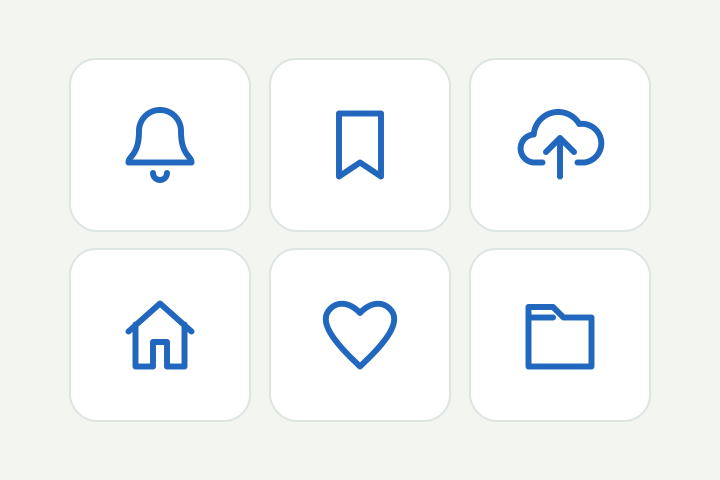
Outline · 24 px
Six matching outline icons: bell, bookmark, upload cloud, home, heart and folder

A light outline family

Bell, bookmark, upload cloud, home, heart and folder share a similar visual weight. Review stroke widths, corner shapes and empty space when planning a set.

Six matching outline UI icons: bell, bookmark, upload cloud, home, heart and folder; 24 px grid, consistent stroke weight, rounded corners, no lettering.

Overview

What does an AI SVG Icon Generator do?

Start with the meaning you want to communicate, then describe a symbol and its visual treatment. The generated SVG gives you geometry to inspect, refine and test in the actual interface.

A prompt with a purpose

Specify whether the icon represents an action, a category or a status. That decision helps you choose a recognizable subject instead of adding decoration that obscures the message.

An editable vector result

Review the shapes and colors in Studio, adjust the initial result and download the SVG when it is suitable for your layout.

Room for design judgment

Inspect alignment, gaps and optical balance yourself. A generated icon may need several focused adjustments before it feels comfortable beside existing interface elements.

Give the AI SVG Icon Generator clear constraints

The AI SVG Icon Generator works from your description. Consistent, concrete instructions make the result easier to assess.

Outline or solid

Choose a line based symbol with open spaces or a filled silhouette with simple cutouts. Mixing both approaches without a reason can make a small icon hard to read.

A restrained palette

Start with one color or a main color and one accent. Decide which part receives the accent so it reinforces the symbol rather than competing with it.

Useful breathing room

Ask for a centered composition with clear outer space. After generation, inspect the visible bounds and compare the icon with the other controls in your interface.

Where these icons can help

Use a specific visual task as the starting point, then verify the result in context.

Actions and navigation

Explore a download arrow, settings control or saved item symbol. Check that users can distinguish related actions without relying on tiny details.

Feature and category markers

Create a simple illustration for a product feature or content category. Keep its visual weight close to neighboring icons so the group feels balanced.

Status and empty states

Develop a clear symbol for an empty folder or completed task. Pair it with meaningful interface text so the artwork is not the only source of information.

How to use the AI SVG Icon Generator

Take one icon from a written idea to a tested interface asset.

Write a focused prompt

Name one subject and specify outline or solid, a small palette and important spacing. Mention any details that must remain visible, such as the opening in a lock.

Generate in Studio

Continue with the prompt, sign in and review the credit cost. Start generation when the brief is ready, then inspect the first vector result.

Refine and test

Make a focused correction, review at the actual interface size and export the SVG. Test the downloaded file beside text and other icons in its destination.

Write better icon prompts

The most useful brief explains what the symbol must communicate and which details can be left out.

Use a repeatable prompt structure

Start with the object and its role: one bell for a notification button. Follow with the treatment: rounded outline, one dark color, no lettering and no decorative scene. Add a specific structural requirement only when it affects recognition, such as a clearly separated bell clapper. For a larger scene or supporting illustration, AI Generate SVG leaves more room for a broader composition.

Concrete rules about corners, fill, symmetry and space give you something to verify. Save the prompt so revisions preserve decisions that work.

Design for the size people will see

A preview enlarged to fill a panel can make a complicated symbol seem readable. At a small interface size, thin lines may weaken and closely spaced regions may merge. Prioritize the silhouette and a few large openings before adding interior decoration.

Test at the size used by the product, for example in a compact toolbar or next to a form label. Examine visual weight and alignment, then adjust line placement and any details that crowd the real layout.
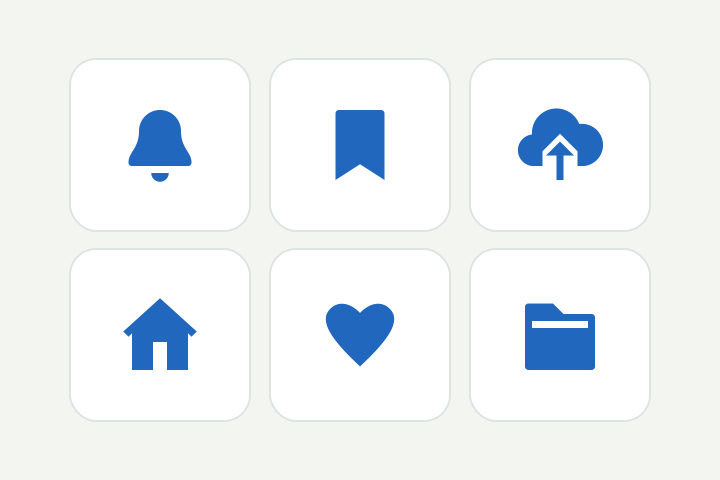
Solid · 24 px
Six matching solid icons: bell, bookmark, upload cloud, home, heart and folder

The same concepts as filled silhouettes

Filled shapes make a stronger visual statement at small sizes. Keep the six symbols recognizable and compare their apparent weight across the family.

Six matching solid UI icons: bell, bookmark, upload cloud, home, heart and folder; 24 px grid, balanced filled silhouettes, consistent rounded corners, no lettering.

Iterate on one visible issue

When the result is close, identify the specific defect: the arrow is too thin, the inner gap is closed or the handle pulls the composition to one side. Make one focused change, then compare with the earlier version at the same size.

The AI SVG Icon Generator can explore alternatives, but revisions may change details you liked. Restate the subject and key constraints, then choose the clearest symbol.

Match a family through review

Compare stroke weight, corners, padding and apparent size with your existing icons. Use those observations in your prompt and refine the exported paths when needed.

Develop one icon at a time in Studio. For a family, review each symbol beside its neighbors and maintain a short list of shared rules for spacing, corners and visual weight. If the set includes an existing bitmap symbol, PNG to SVG offers a way to rebuild that source before matching its paths to the family.

Frequently asked questions

AI SVG Icon Generator FAQ

Practical answers about prompts, small icons and editing.

Can I choose outline or solid icons?

Yes. Describe the desired treatment in your prompt, including any rounded corners or open spaces that matter. Review the generated geometry because the interpretation may need adjustment.

Can it match my existing icon library exactly?

You can describe shared rules such as stroke weight and padding, but an exact match is not guaranteed. Compare the result with your existing set and refine it before use.

Will the icon look sharp at every small size?

SVG scales the geometry, but readability also depends on spacing, line weight and rendering at the intended size. Test the actual layout and adjust details that become crowded or faint.

Can I export an entire icon set at once?

This entry prepares one prompt for the current Studio workflow. It does not provide a dedicated batch export for a complete icon family.

Can I change the generated colors and paths?

Yes. Review and refine the vector result in Studio, then download the SVG. Confirm its appearance in your target application after export.

Does generation require credits?

Yes. Generating in Studio requires a signed in account and credits. Preparing a prompt here does not start generation; review the current cost in Studio before proceeding.