SVG.LA

PNG to SVG

Bring a transparent logo, icon or flat illustration into an editable vector workflow. PNG to SVG helps you rebuild useful shapes, review their edges and prepare artwork for different display sizes.

PNG uploadsUp to 10 MiBEditable vector paths
PNG only · Up to 10 MiB

Upload or select an image before converting to SVG.

PNG to SVG
Upload or select an image before converting to SVG.

Prepare the upload here. Sign in to Studio and review the credit cost before generating.

PNG to SVG examples: transparency and contours

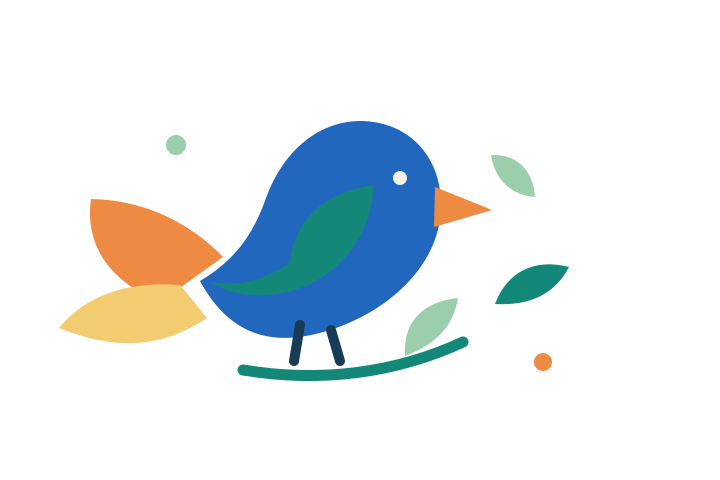
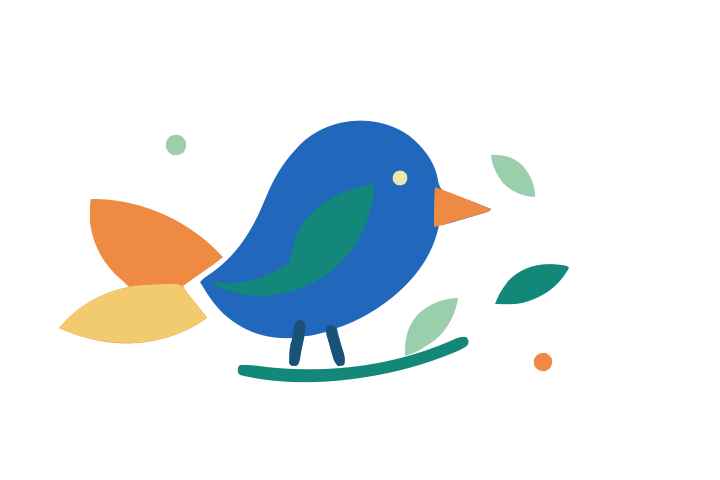
These pairs show the original artwork beside its traced SVG. Inspect the shapes and edges as well as the overall resemblance.

Source PNG
Blue and teal bird with an orange tail on a transparent PNG canvas
SVG result
Traced SVG of the bird, showing its colored shapes and outer silhouette

A clear silhouette on a transparent canvas

The bird separates a few flat colors from an empty background. Compare the beak, tail and openings between the shapes after tracing.

Overview

What does PNG to SVG change?

A PNG records pixels, including any transparent areas. Conversion interprets the visible artwork as vector shapes. The result can be edited and scaled, but its geometry still needs to be checked.

From pixel edges to paths

The conversion builds shapes around visible regions. Clean boundaries help separate the subject from its surroundings; fuzzy edges and tiny specks can introduce unwanted detail.

Transparency needs inspection

Transparent pixels are useful source information. Review the resulting background and internal openings because conversion may interpret faint or semitransparent edges differently.

A useful starting point

Treat the first vector as a draft to refine. Adjust colors, remove unnecessary shapes and compare important contours with the original before exporting.

Control the details that matter

PNG to SVG is most useful when the source has a clear silhouette and a manageable palette.

Keep colors deliberate

A small set of solid colors usually makes a more practical vector than a dense field of similar shades. Check whether neighboring regions remain distinct after conversion.

Check soft borders

Anti-aliasing creates intermediate edge pixels to smooth a bitmap. Those pixels can become pale outlines or extra shapes, especially when artwork is viewed against a different background.

Export editable geometry

Download the reviewed SVG for a website or compatible design application. Vector scaling preserves the geometry you approved, including any small imperfections you leave behind.

Where PNG to SVG is a good fit

Choose graphics whose identity comes from shape and color rather than photographic texture.

Transparent product icons

Rework a small feature symbol for a landing page. Preserve its recognizable silhouette, then check whether narrow gaps remain readable at the final interface size.

Flat illustrations and stickers

Convert simple artwork into shapes you can recolor for a presentation or web layout. Keep decorative details only when they remain useful at the intended size.

Existing brand artwork

Prepare a raster mark for further vector editing. Use the original palette as a reference and inspect letterforms separately from the surrounding symbol.

How to use PNG to SVG

Prepare the file, bring it to Studio and review the result before download.

Choose a source

Upload a PNG no larger than 10 MiB. Prefer an original export to a screenshot, and crop unrelated material while keeping the full outer edge intact.

Continue in Studio

Your source and optional instruction become a local draft for the Studio workflow. Sign in, inspect the available settings and check the required credits before starting conversion.

Review and download

Compare the vector preview with the source. Inspect transparency, colors, openings and curves, then refine the artwork and download the SVG.

Prepare better artwork for PNG to SVG

Source preparation and a short review can save substantial cleanup later.

Look at the transparency before uploading

Place the PNG over a light background and then a dark one in your image editor. This makes stray pixels, a faint white border and partially transparent shadows easier to see. A checkerboard preview alone can hide problems that become obvious on your actual page. If your clearest original is in another raster format, Image to SVG also accepts JPEG, WebP and GIF sources.

Prepare background removal or shadow simplification in your image editor before uploading. Keep a copy of the original so you can compare changes with the artwork you intended to preserve.

Choose the right amount of detail

For a small icon, the outer silhouette and one clear interior opening may matter more than decorative texture. A larger illustration may need secondary regions as well. Decide where the SVG will appear before asking the conversion to preserve every visible mark.

Upscaling a blurry export adds pixels without recovering missing information. Look for a cleaner original instead. If several versions exist, choose the one with the clearest edge rather than simply the largest file size.
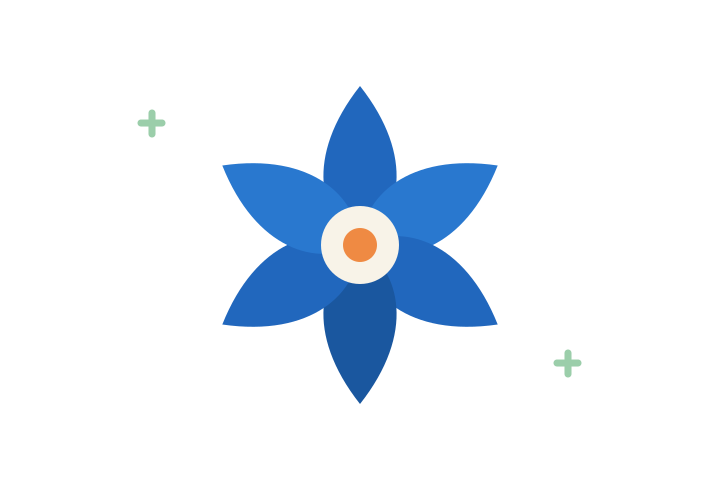
Source PNG
Blue six-petal geometric flower in the original PNG
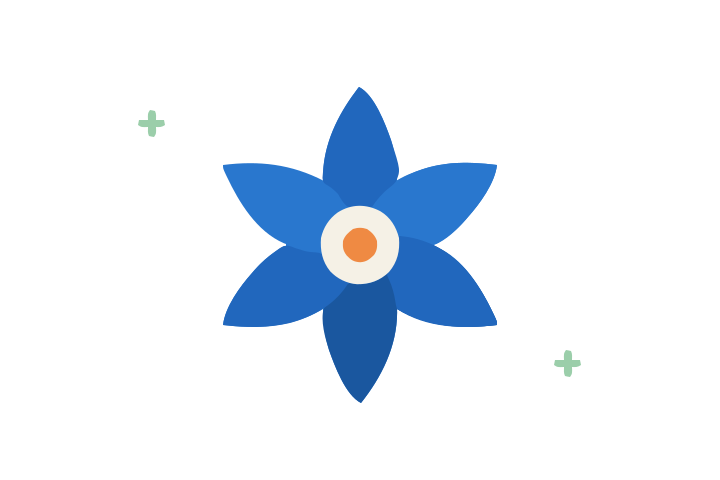
SVG result
SVG tracing of the blue flower with six curved petals

Follow the curves around a simple flower

A repeated shape makes uneven curves easier to notice. Check where the petals meet and whether the center remains distinct.

Set a review and editing goal

Use the optional note to record priorities for later review, such as keeping the dark blue outer shape, preserving the center opening and simplifying tiny highlights. The first conversion traces the source image using the conversion settings; the note does not automatically clean its background or change its colors. Review the result, then use these goals for further editing in Studio.

PNG to SVG can approximate the shapes in your source, so inspect the result even when the preview looks familiar. Pay special attention to rounded corners, narrow spaces and touching color regions that may have merged.

Test the exported result in context

View the graphic at its final display size and on the intended background. A thin pale contour can look harmless when enlarged but become distracting in a small button. Check that important spaces remain open and that the composition sits comfortably inside its bounds.

Finally, open the downloaded file in the application where it will be used. Confirm that the appearance and colors remain suitable there. Keep the PNG as a visual reference while making any later path edits. For a brand mark, the Logo to SVG review also checks lettering, spacing and official color references.

Frequently asked questions

PNG to SVG FAQ

Answers about transparency, source quality and the Studio handoff.

Which file can I upload?

This page accepts a PNG image up to 10 MiB. For a JPEG source, use the dedicated JPG conversion page instead of renaming the file extension.

Does PNG to SVG preserve transparency?

A transparent source helps identify the artwork, but you should inspect the converted background and openings. Semitransparent edges, glows and shadows may be simplified or interpreted as separate regions.

Will this recover detail from a tiny PNG?

No. Conversion can rebuild the visible shapes, but it cannot guarantee recovery of missing detail. Use a clean original and review any small lettering or intricate contours.

Is a vector better for every PNG?

No. Photographic textures and soft gradients may remain more practical as raster images. Simple flat artwork usually provides a more manageable set of editable shapes.

Can I edit the converted result?

Yes. Continue working with the vector result in Studio, inspect its paths and colors, and download the SVG when it is ready for your project.

Does uploading start a paid conversion?

Preparing the file on this page does not start generation. Continue to Studio, sign in and review the current credit cost before you choose to generate.